How to Manually Run a Full File Backup on Linux
When using the Backup software on a Linux server without a desktop environment, backup sets can be managed and executed through the command line (SSH).
This guide explains how to manually run a full file backup of an existing backup set, overriding its normal in-file delta settings.
Step 1 - Connect to Your Server
Connect to your Linux server via SSH using an account with the appropriate permissions.
This guide uses the default installation directory /usr/local/obm. If you have installed the backup client in a different location, you will need to adjust the paths accordingly.
Step 2 - Create a Copy of the Backup Script
The Backup software provides a script called RunBackupSet.sh for manually executing backup sets.
To avoid modifying the original script, create a copy that can be configured specifically for full backups.
cp /usr/local/obm/bin/RunBackupSet{,-full}.shThis creates a new script called RunBackupSet-full.sh while leaving the original unchanged.
Step 3 - Configure the Full Backup Script
Open the new script using your preferred text editor, such as vi or nano.
vi /usr/local/obm/bin/RunBackupSet-full.shLocate the User Defined Section and update the following variables:
BACKUP_TYPE="FILE"
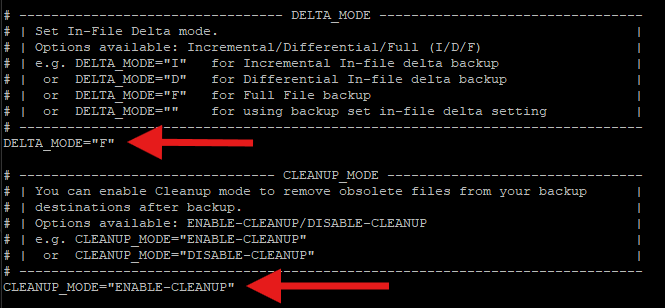
DELTA_MODE="F"
CLEANUP_MODE="ENABLE-CLEANUP"
The DELTA_MODE="F" setting forces a full file backup rather than using the backup set's configured incremental or differential in-file delta settings.
The cleanup setting controls whether obsolete backup files are removed from the destination after the backup. This is not required to perform a full backup.
Note: For database backup sets, BACKUP_TYPE="DATABASE" requests a full database backup. The DELTA_MODE setting alone does not force a full database backup.
The relevant configuration section should look similar to the example below:
Save and close the file once you have made the changes.
Step 4 - Run the Full Backup
You can now manually execute the full backup using your newly created script.
For example, if your backup set is named website-backup, run:
/usr/local/obm/bin/RunBackupSet-full.sh website-backupThe backup will start using the settings configured in the script.
Step 5 - Find Your Backup Set Name
If you are unsure of the backup set name, the backup software provides a script to list the configured backup sets.
Run:
/usr/local/obm/bin/ListBackupSet.shExample output:
Using APP_HOME     : /usr/local/obm
Using SETTING_HOME :
BackupSet Name= website-backup, ID= 1371855163691
BackupSet Name= database-backup, ID= 1940753445562
You can use either the backup set name or its ID when executing the backup script.
For example:
/usr/local/obm/bin/RunBackupSet-full.sh 1371855163691Important Information
- The original
RunBackupSet.shremains unchanged, so existing scheduled backups are unaffected. - Full backups may take longer and consume more storage space than incremental or differential backups.
- Ensure sufficient storage capacity is available at your backup destination.
- Once the backup has completed, review the backup logs to confirm it completed successfully.